

AI / Field notes
Control Grasshopper with Claude and MCP
Expose selected Grasshopper controls and outputs so Claude can steer a parametric workflow.
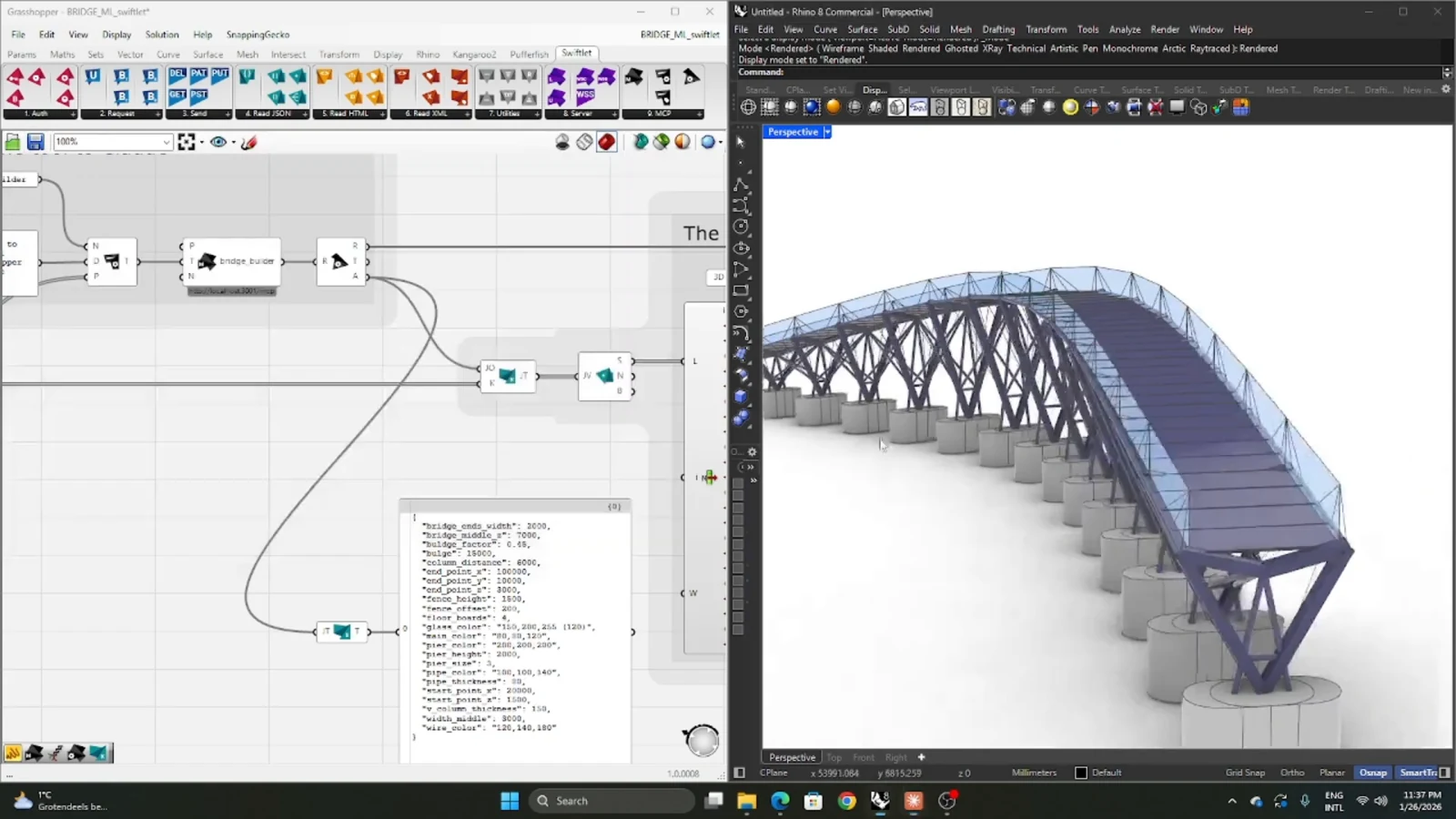
For an AI assistant to help with a live design workflow, it needs more than a description of the model. It needs a controlled way to inspect and operate it. This video explores Claude and MCP as an interface to Grasshopper, with feedback forming the link between an action and its consequences.
Try it yourself
Get the template in the community
Templates are hosted in Ontologic Academy on Circle. Follow the link, then sign in or create a community account to access the template and its instructions.
Think in tools, not exposed sliders
A useful tool describes a meaningful operation. It tells the agent what it can do, which inputs are required and how to interpret the result. This is easier to reason about than granting access to a large list of anonymous controls.
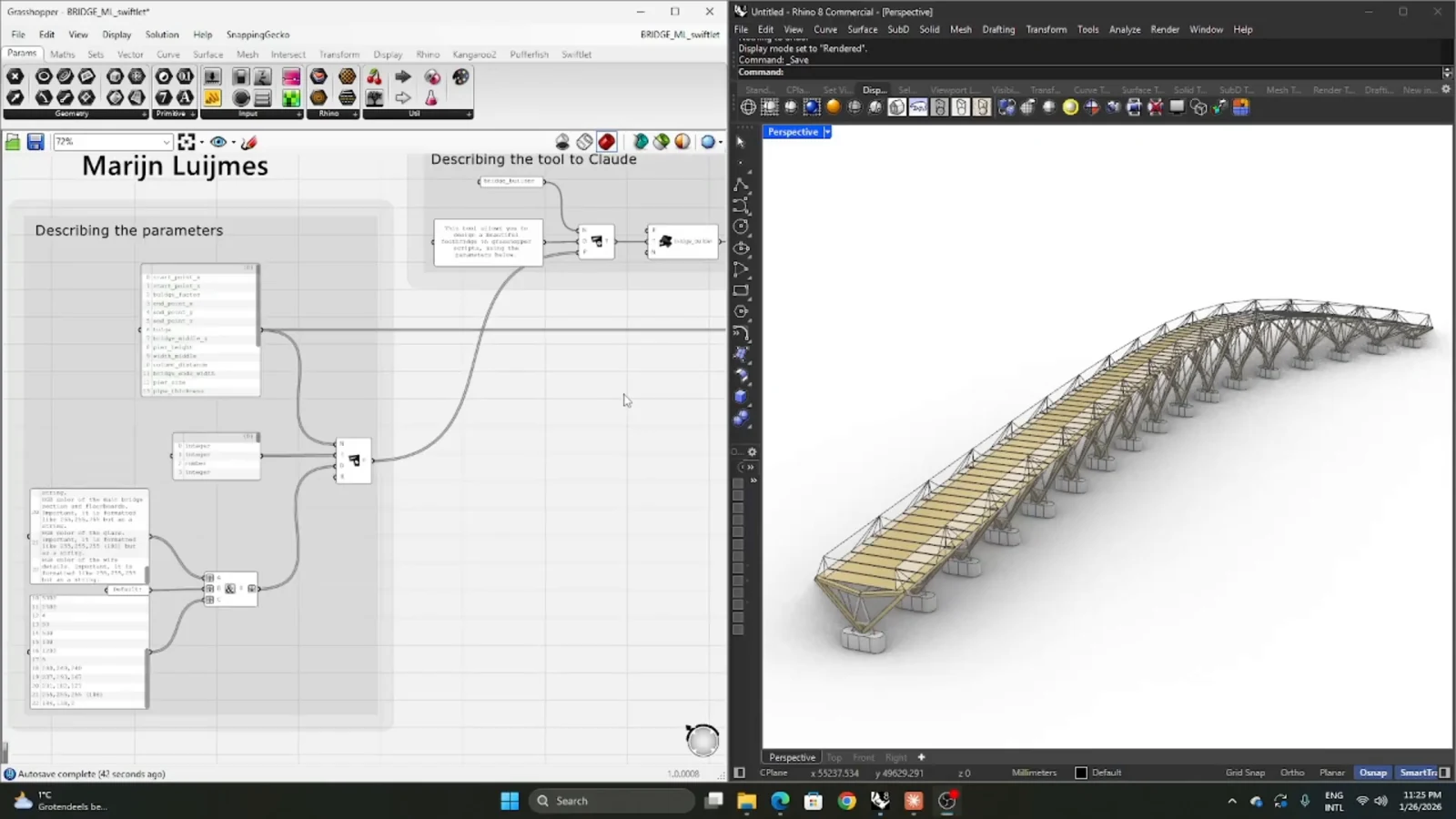
Choose the interface around the design task. Some parameters should be adjustable, others fixed, and some outputs available only for inspection. Making those choices explicitly helps keep the agent's actions within the model's intended scope.
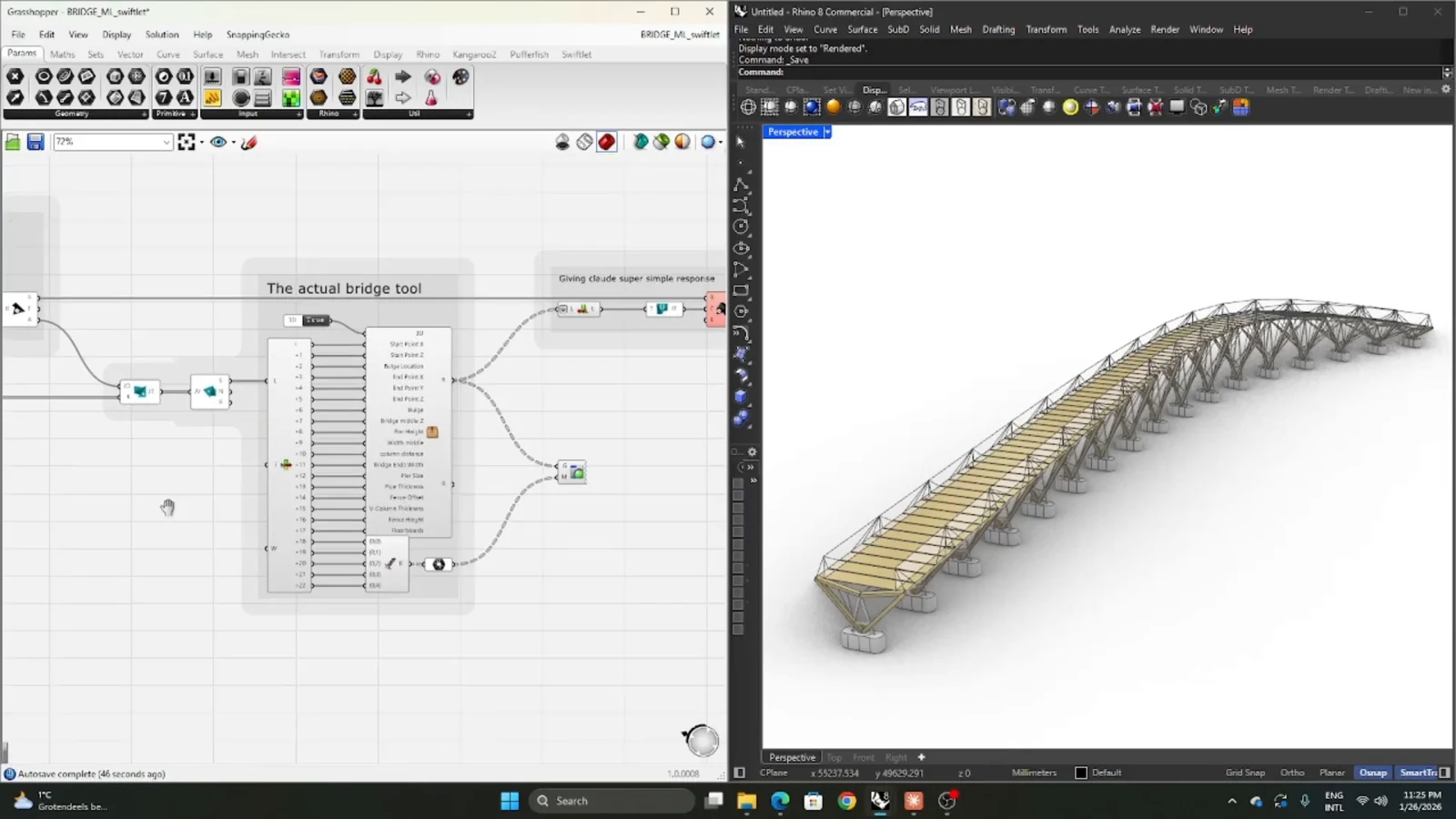
Close the feedback loop
An instruction to change a value is only half an interaction. The agent also needs to know what happened afterward. Expose outputs that describe whether the operation succeeded and how the design changed.
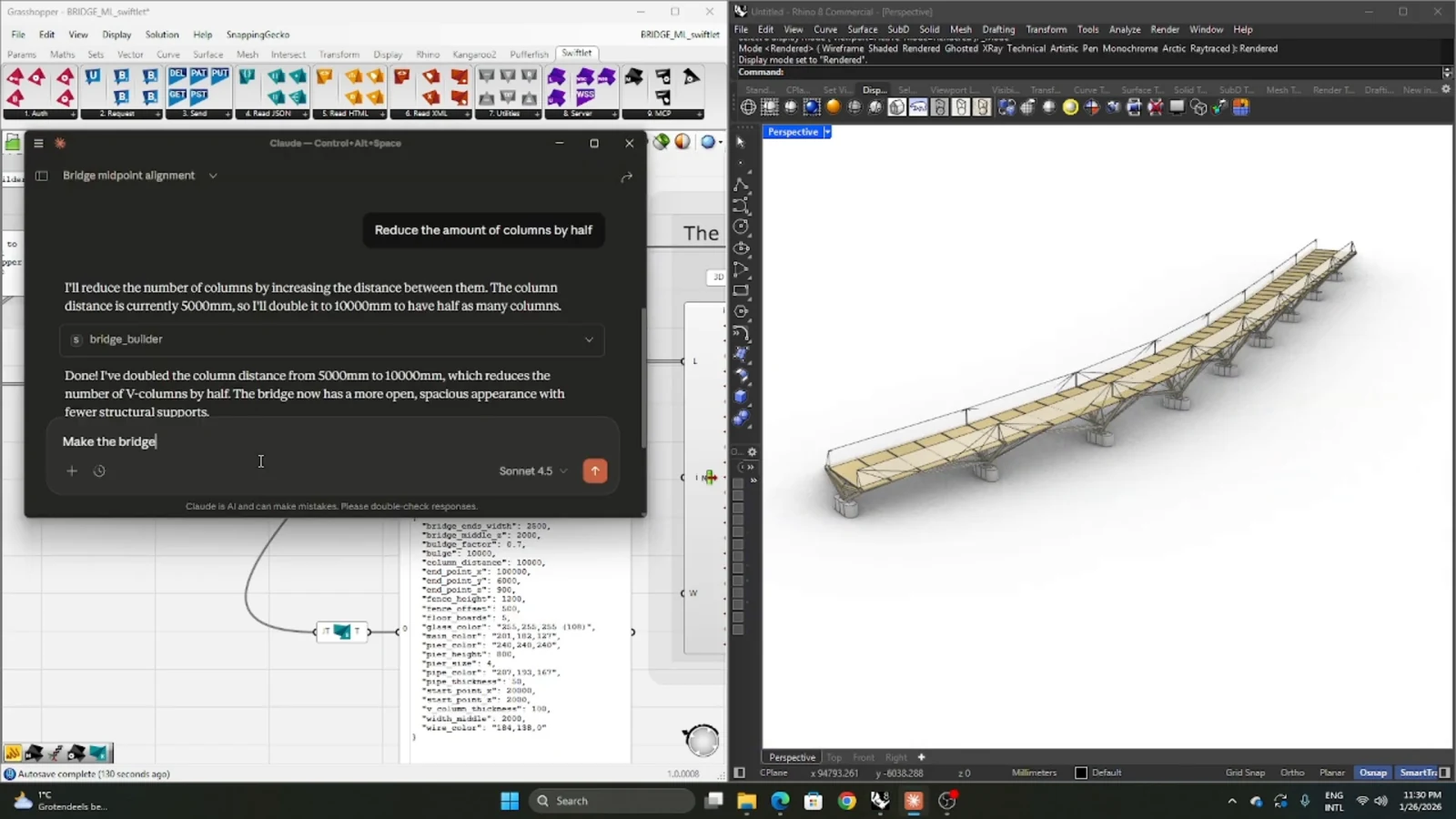
The right feedback depends on the task. A metric may support comparison, while geometry provides context that the metric omits. Keep human review in the loop when the design question involves qualities that are not represented in the exposed outputs.
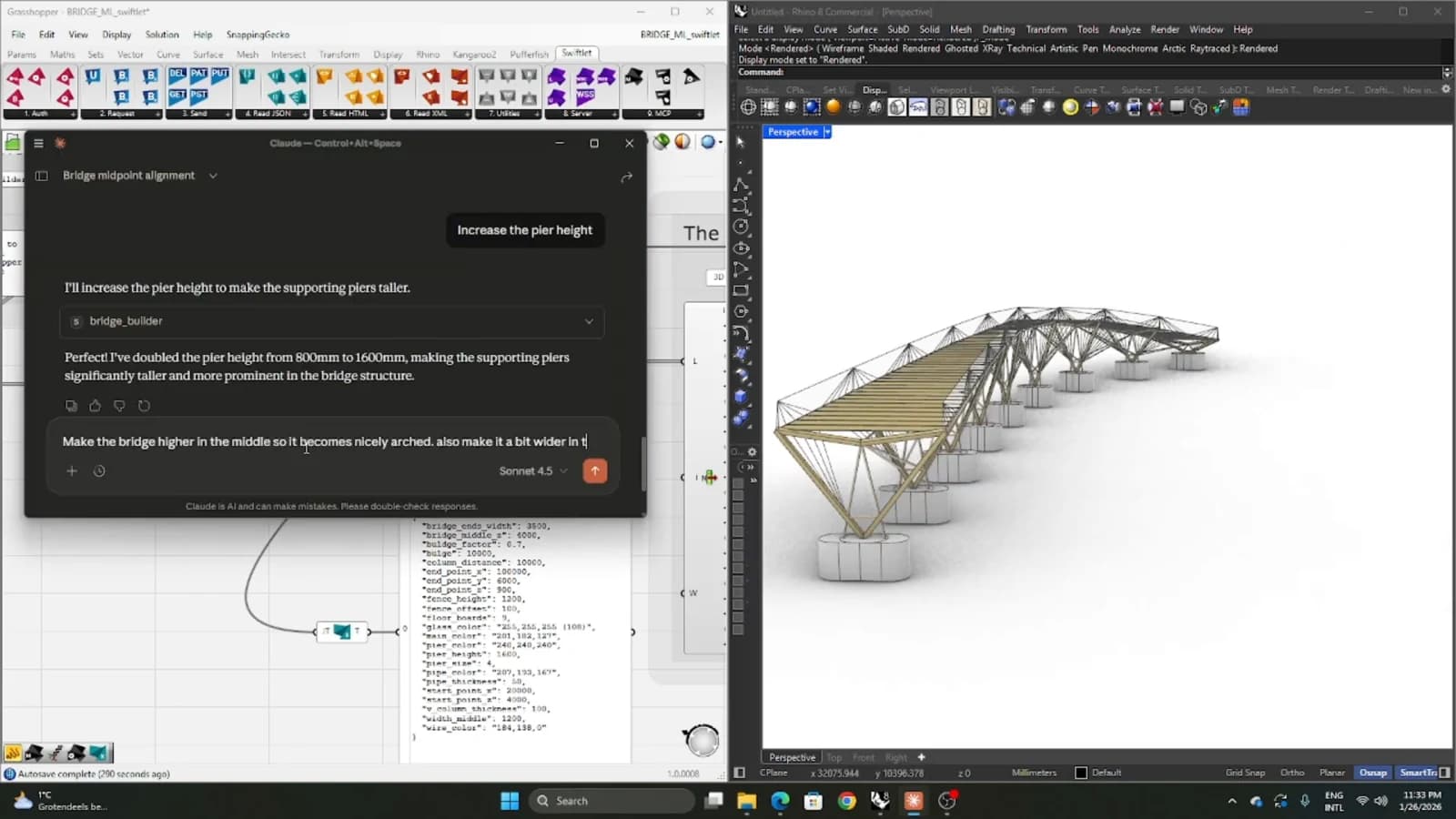
Make experiments traceable
Begin with a known model state and make one change at a time. Inspect whether the tool description, accepted values and returned information match reality. Once the round trip is dependable, more complex sequences become easier to assess. The connection is valuable when it makes a model easier to operate without hiding how it works.
From concept to canvas
See the workflow in practice
The companion video shows the model and the workflow behind these ideas. Watch the walkthrough when you want to see how the pieces connect.
Watch on YouTube